How to Create Gitton Plugins
Learn how to build plugins for Gitton using JavaScript/TypeScript. This guide covers package.json configuration, permissions, UI creation, and API usage with step-by-step examples.
What Plugins Can Do
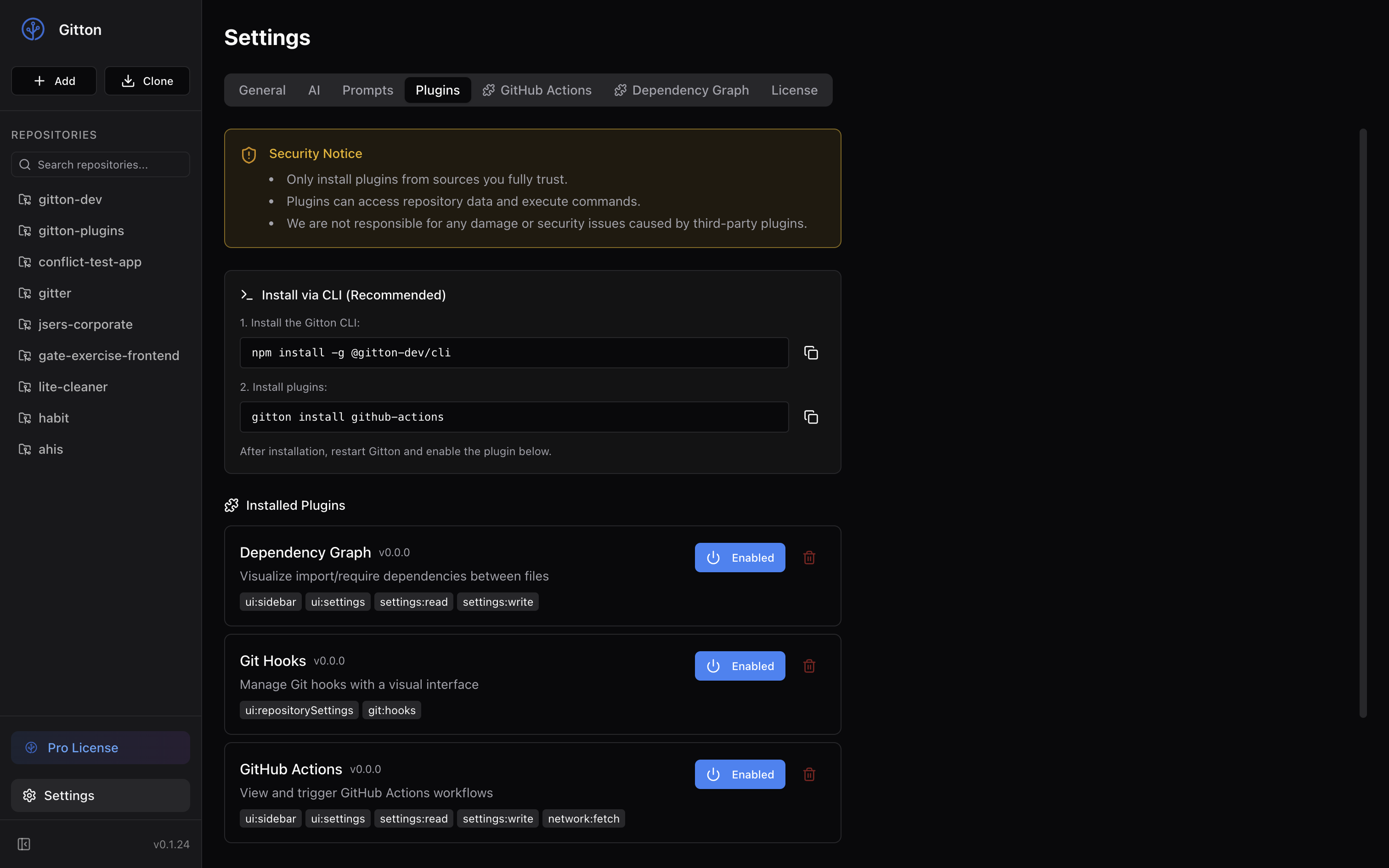
Gitton is extensible with JavaScript/TypeScript. With plugins, you can customize Gitton's functionality in various ways:
- Add custom panels to the sidebar
- Add tabs to the settings screen
- Add items to repository settings
- Replace the file editor
- Add items to context menus
Use React, Vue, Svelte, or any framework you prefer to build the UI.
Quick Start with create-gitton-plugin
Use the create-gitton-plugin command to scaffold a new plugin with interactive prompts:
npx create-gitton-plugin
The command will guide you through:
- Plugin name (kebab-case)
- Display name
- Description
- Author name
- Extension points (sidebar, settings, etc.) via checkboxes
- Required permissions via checkboxes
- Whether to use React
- Whether to use Tailwind CSS
You can also skip the prompts by providing options:
npx create-gitton-plugin -n my-plugin -e sidebar,settingsTab --react --tailwind -y
| Option | Description |
|---|---|
-n, --name | Plugin name |
-d, --display-name | Display name |
--description | Description |
-a, --author | Author |
-e, --extension-points | Extension points (comma-separated) |
-p, --permissions | Permissions (comma-separated) |
--react / --no-react | Use React |
--tailwind / --no-tailwind | Use Tailwind CSS |
-y, --yes | Skip prompts |
Project Structure
A basic plugin structure looks like this:
my-plugin/
├── package.json        # Plugin configuration
├── src/
│   └── sidebar/
│       ├── index.html  # Entry point
│       └── main.tsx    # Main TypeScript file
├── ui/                 # Built files
├── vite.config.ts      # Build configuration
└── tsconfig.json
package.json Configuration
All plugin configuration goes in the gitton field of package.json.
{
  "name": "@your-name/plugin-example",
  "version": "1.0.0",
  "gitton": {
    "displayName": "My Plugin",
    "version": "1.0.0",
    "description": "Plugin description",
    "author": "Your Name",
    "permissions": [
      "ui:sidebar",
      "settings:read",
      "settings:write"
    ],
    "extensionPoints": {
      "sidebar": {
        "entry": "ui/src/sidebar/index.html",
        "icon": "puzzle",
        "position": "bottom"
      }
    }
  },
  "files": ["ui", "package.json"],
  "keywords": ["gitton", "gitton-plugin"]
}
Permissions
Declare the permissions your plugin needs based on the APIs it uses.
| Permission | Description |
|---|---|
ui:sidebar | Add panel to sidebar |
ui:settings | Add tab to settings screen |
ui:repositorySettings | Add item to repository settings |
ui:contextMenu | Add item to context menu |
ui:editor | Provide file editor |
settings:read | Read plugin settings |
settings:write | Write plugin settings |
network:fetch | Make HTTP requests |
git:read | Read repository files |
git:write | Write repository files |
git:hooks | Manage Git hooks |
Extension Points
Extension points define where your plugin can add UI.
Sidebar
"sidebar": {
  "entry": "ui/src/sidebar/index.html",
  "icon": "puzzle",
  "position": "bottom"
}
icon: Lucide icon nameposition:toporbottom
Settings Tab
"settingsTab": {
  "entry": "ui/src/settings/index.html",
  "label": "Plugin Name"
}
Repository Settings
"repositorySettings": {
  "entry": "ui/src/repo-settings/index.html",
  "label": "Tab Name"
}
Editor
"editor": {
  "name": "Custom Editor",
  "filePatterns": ["*.md", "*.mdx"],
  "priority": 1,
  "entry": "ui/src/editor/index.html"
}
Gitton Plugin API
The window.gitton object is available in your plugin's HTML files.
Reading and Writing Settings
// Read a setting
const value = await window.gitton.settings.get('myKey')

// Save a setting
await window.gitton.settings.set('myKey', 'myValue')

// Get all settings
const allSettings = await window.gitton.settings.getAll()
Showing Notifications
// Info notification
window.gitton.ui.showNotification('Saved successfully', 'info')

// Warning
window.gitton.ui.showNotification('Please be careful', 'warning')

// Error
window.gitton.ui.showNotification('An error occurred', 'error')
File Operations
// Read a file (path relative to repository root)
const content = await window.gitton.fs.readFile('src/index.ts')

// Write a file
await window.gitton.fs.writeFile('output.txt', 'Hello World')

// List directory
const entries = await window.gitton.fs.readdir('src')

// Check if file exists
const exists = await window.gitton.fs.exists('package.json')
GitHub CLI Integration
// Get PR list
const result = await window.gitton.gh.run([
  'pr', 'list', '--json', 'number,title'
])

if (result.exitCode === 0) {
  const prs = JSON.parse(result.stdout)
  console.log(prs)
}
Communication with Parent Window
// Send a message
window.gitton.postMessage.send({
  type: 'myEvent',
  data: { foo: 'bar' }
})

// Receive messages
const unsubscribe = window.gitton.postMessage.on('parentEvent', (data) => {
  console.log('Received:', data)
})

// Unsubscribe
unsubscribe()
Getting Theme
// Get current theme
const theme = await window.gitton.ui.getTheme() // 'light' | 'dark' | 'system'

// Listen for theme changes
window.addEventListener('gitton:contextchange', (event) => {
  const { theme } = event.detail
  // Update UI based on theme
})
Example: Simple Sidebar Plugin
Let's create a simple working plugin.
package.json
{
  "name": "@example/plugin-hello",
  "version": "1.0.0",
  "type": "module",
  "gitton": {
    "displayName": "Hello Plugin",
    "version": "1.0.0",
    "description": "A simple greeting plugin",
    "permissions": ["ui:sidebar", "settings:read", "settings:write"],
    "extensionPoints": {
      "sidebar": {
        "entry": "ui/sidebar/index.html",
        "icon": "hand",
        "position": "bottom"
      }
    }
  },
  "files": ["ui", "package.json"]
}
src/sidebar/index.html
<!DOCTYPE html>
<html>
  <head>
    <meta charset="UTF-8" />
    <style>
      body {
        font-family: system-ui, sans-serif;
        padding: 16px;
        margin: 0;
      }
      button {
        padding: 8px 16px;
        cursor: pointer;
      }
    </style>
  </head>
  <body>
    <h2>Hello Plugin</h2>
    <p id="message">Click the button!</p>
    <button id="btn">Say Hello</button>
    <script type="module" src="./main.js"></script>
  </body>
</html>
src/sidebar/main.ts
const btn = document.getElementById('btn')!
const message = document.getElementById('message')!

let count = 0

btn.addEventListener('click', async () => {
  count++
  message.textContent = `Hello! (${count} times)`

  // Save to settings
  await window.gitton.settings.set('clickCount', count)

  // Show notification
  window.gitton.ui.showNotification(`Clicked ${count} times`, 'info')
})

// Load previous count on startup
async function init() {
  const savedCount = await window.gitton.settings.get('clickCount')
  if (typeof savedCount === 'number') {
    count = savedCount
    message.textContent = `Previous: ${count} times`
  }
}

init()
Build Configuration (Vite)
Here's an example Vite configuration:
vite.config.ts
import { defineConfig } from 'vite'
import { resolve } from 'path'

export default defineConfig({
  build: {
    outDir: 'ui',
    rollupOptions: {
      input: {
        sidebar: resolve(__dirname, 'src/sidebar/index.html')
      }
    }
  }
})
Type Definitions
For TypeScript development, install @gitton-dev/types for Gitton Plugin API type support.
npm install -D @gitton-dev/types
tsconfig.json
{
  "compilerOptions": {
    "types": ["@gitton-dev/types"]
  }
}
This enables type completion for window.gitton in your IDE.
Debugging
During development, you can check plugin console logs in Gitton's developer tools.
- Launch Gitton
- Open DevTools with
Cmd+Option+I(Mac) orCtrl+Shift+I(Windows/Linux) - Select the plugin's iframe to view its console
Publishing
Publish your plugin to npm to make it installable via gitton install.
npm publish --access public
Before publishing, ensure:
package.jsonnamefollows@your-scope/plugin-xxxorgitton-plugin-xxxformatkeywordsincludesgitton-pluginfilesfield specifies the built files
Learn from Official Plugins
Official plugin source code is available on GitHub.
Use these working examples as reference to build your own plugins.