Gittonプラグインの作り方
JavaScript/TypeScriptでGitton用のプラグインを作る方法を解説します。package.jsonの設定から、権限の指定、UIの作成、APIの使用方法まで、ステップバイステップで説明します。
プラグインで何ができるか
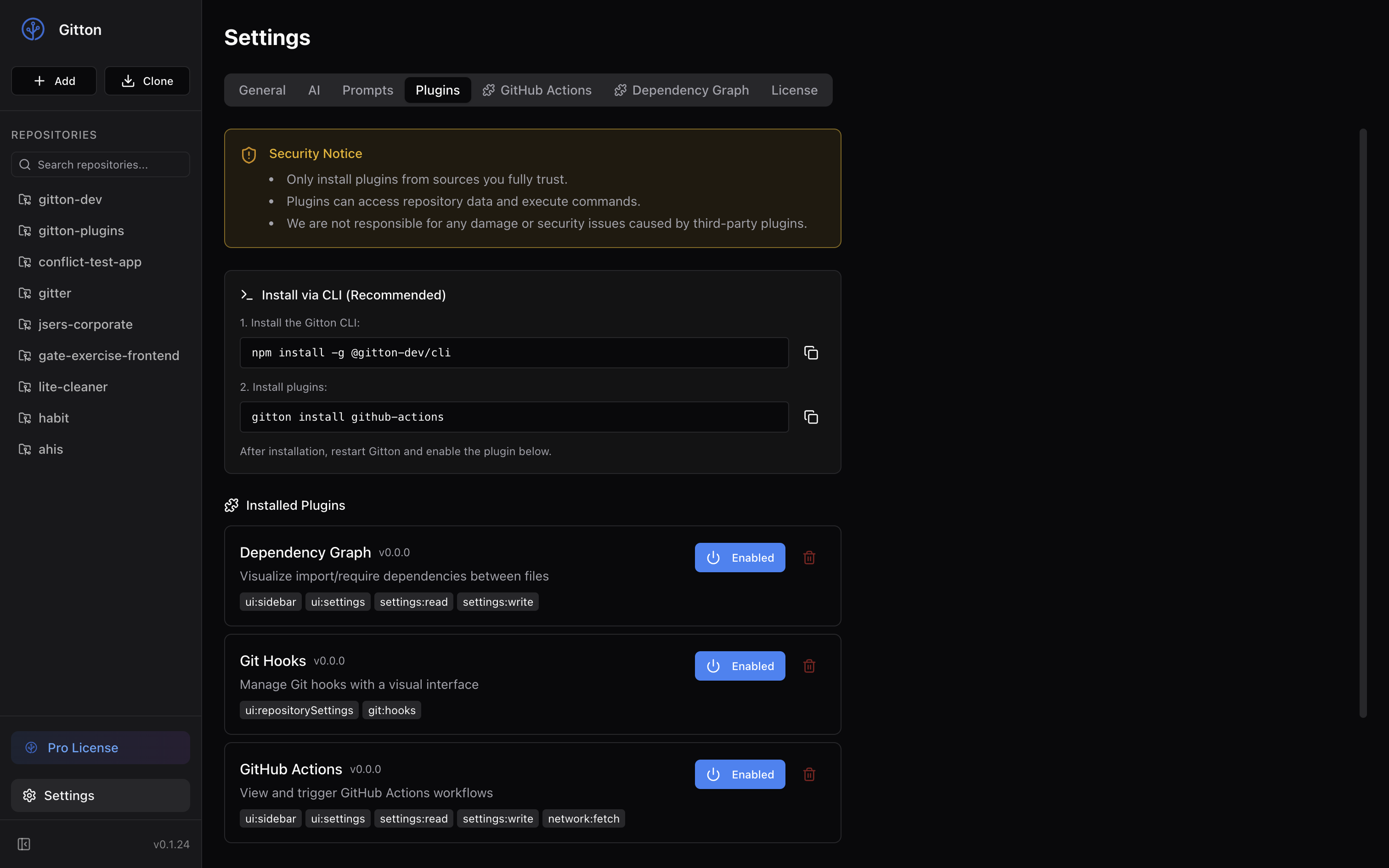
GittonはJavaScript/TypeScriptで拡張できます。プラグインを作れば、Gittonの機能を自由にカスタマイズできます。
- サイドバーに独自のパネルを追加
- 設定画面にタブを追加
- リポジトリ設定に項目を追加
- ファイルエディタを置き換え
- コンテキストメニューに項目を追加
ReactやVue、Svelteなど、好きなフレームワークを使ってUIを構築できます。
create-gitton-plugin でかんたん作成
create-gitton-plugin コマンドを使えば、対話形式でプラグインの雛形を生成できます。
npx create-gitton-plugin
コマンドを実行すると、以下の項目を対話形式で設定できます:
- プラグイン名(kebab-case)
- 表示名
- 説明
- 作成者名
- 拡張ポイント(サイドバー、設定画面など)をチェックボックスで選択
- 必要な権限をチェックボックスで選択
- React を使うか
- Tailwind CSS を使うか
オプションを指定すれば、対話をスキップすることもできます:
npx create-gitton-plugin -n my-plugin -e sidebar,settingsTab --react --tailwind -y
| オプション | 説明 |
|---|---|
-n, --name | プラグイン名 |
-d, --display-name | 表示名 |
--description | 説明 |
-a, --author | 作成者 |
-e, --extension-points | 拡張ポイント(カンマ区切り) |
-p, --permissions | 権限(カンマ区切り) |
--react / --no-react | React使用 |
--tailwind / --no-tailwind | Tailwind CSS使用 |
-y, --yes | 対話をスキップ |
プロジェクト構造
基本的なプラグインの構造は以下のようになります。
my-plugin/
├── package.json        # プラグイン設定
├── src/
│   └── sidebar/
│       ├── index.html  # エントリーポイント
│       └── main.tsx    # メインのTypeScriptファイル
├── ui/                 # ビルド後のファイル
├── vite.config.ts      # ビルド設定
└── tsconfig.json
package.jsonの設定
プラグインの設定はすべてpackage.jsonのgittonフィールドに記述します。
{
  "name": "@your-name/plugin-example",
  "version": "1.0.0",
  "gitton": {
    "displayName": "My Plugin",
    "version": "1.0.0",
    "description": "プラグインの説明",
    "author": "Your Name",
    "permissions": [
      "ui:sidebar",
      "settings:read",
      "settings:write"
    ],
    "extensionPoints": {
      "sidebar": {
        "entry": "ui/src/sidebar/index.html",
        "icon": "puzzle",
        "position": "bottom"
      }
    }
  },
  "files": ["ui", "package.json"],
  "keywords": ["gitton", "gitton-plugin"]
}
権限(permissions)
プラグインが使用するAPIに応じて、必要な権限を宣言します。
| 権限 | 説明 |
|---|---|
ui:sidebar | サイドバーにパネルを追加 |
ui:settings | 設定画面にタブを追加 |
ui:repositorySettings | リポジトリ設定に項目を追加 |
ui:contextMenu | コンテキストメニューに項目を追加 |
ui:editor | ファイルエディタを提供 |
settings:read | プラグイン設定の読み取り |
settings:write | プラグイン設定の書き込み |
network:fetch | HTTPリクエストの実行 |
git:read | リポジトリファイルの読み取り |
git:write | リポジトリファイルの書き込み |
git:hooks | Git hooksの管理 |
拡張ポイント(extensionPoints)
プラグインがUIを追加できる場所です。
サイドバー(sidebar)
"sidebar": {
  "entry": "ui/src/sidebar/index.html",
  "icon": "puzzle",
  "position": "bottom"
}
icon: Lucideのアイコン名position:topまたはbottom
設定タブ(settingsTab)
"settingsTab": {
  "entry": "ui/src/settings/index.html",
  "label": "プラグイン名"
}
リポジトリ設定(repositorySettings)
"repositorySettings": {
  "entry": "ui/src/repo-settings/index.html",
  "label": "タブ名"
}
エディタ(editor)
"editor": {
  "name": "Custom Editor",
  "filePatterns": ["*.md", "*.mdx"],
  "priority": 1,
  "entry": "ui/src/editor/index.html"
}
Gitton Plugin API
プラグインのHTMLファイル内でwindow.gittonオブジェクトが利用可能です。
設定の読み書き
// 設定を読み取る
const value = await window.gitton.settings.get('myKey')

// 設定を保存する
await window.gitton.settings.set('myKey', 'myValue')

// すべての設定を取得
const allSettings = await window.gitton.settings.getAll()
通知の表示
// 情報通知
window.gitton.ui.showNotification('保存しました', 'info')

// 警告
window.gitton.ui.showNotification('注意してください', 'warning')

// エラー
window.gitton.ui.showNotification('エラーが発生しました', 'error')
ファイル操作
// ファイルを読み取る(リポジトリルートからの相対パス)
const content = await window.gitton.fs.readFile('src/index.ts')

// ファイルを書き込む
await window.gitton.fs.writeFile('output.txt', 'Hello World')

// ディレクトリを一覧
const entries = await window.gitton.fs.readdir('src')

// ファイルの存在確認
const exists = await window.gitton.fs.exists('package.json')
GitHub CLI連携
// PRの一覧を取得
const result = await window.gitton.gh.run([
  'pr', 'list', '--json', 'number,title'
])

if (result.exitCode === 0) {
  const prs = JSON.parse(result.stdout)
  console.log(prs)
}
親ウィンドウとの通信
// メッセージを送信
window.gitton.postMessage.send({
  type: 'myEvent',
  data: { foo: 'bar' }
})

// メッセージを受信
const unsubscribe = window.gitton.postMessage.on('parentEvent', (data) => {
  console.log('Received:', data)
})

// リスナーを解除
unsubscribe()
テーマの取得
// 現在のテーマを取得
const theme = await window.gitton.ui.getTheme() // 'light' | 'dark' | 'system'

// テーマ変更を監視
window.addEventListener('gitton:contextchange', (event) => {
  const { theme } = event.detail
  // テーマに応じてUIを更新
})
サンプル:シンプルなサイドバープラグイン
実際に動作するシンプルなプラグインを作ってみましょう。
package.json
{
  "name": "@example/plugin-hello",
  "version": "1.0.0",
  "type": "module",
  "gitton": {
    "displayName": "Hello Plugin",
    "version": "1.0.0",
    "description": "シンプルな挨拶プラグイン",
    "permissions": ["ui:sidebar", "settings:read", "settings:write"],
    "extensionPoints": {
      "sidebar": {
        "entry": "ui/sidebar/index.html",
        "icon": "hand",
        "position": "bottom"
      }
    }
  },
  "files": ["ui", "package.json"]
}
src/sidebar/index.html
<!DOCTYPE html>
<html>
  <head>
    <meta charset="UTF-8" />
    <style>
      body {
        font-family: system-ui, sans-serif;
        padding: 16px;
        margin: 0;
      }
      button {
        padding: 8px 16px;
        cursor: pointer;
      }
    </style>
  </head>
  <body>
    <h2>Hello Plugin</h2>
    <p id="message">Click the button!</p>
    <button id="btn">Say Hello</button>
    <script type="module" src="./main.js"></script>
  </body>
</html>
src/sidebar/main.ts
const btn = document.getElementById('btn')!
const message = document.getElementById('message')!

let count = 0

btn.addEventListener('click', async () => {
  count++
  message.textContent = `Hello! (${count}回目)`

  // 設定に保存
  await window.gitton.settings.set('clickCount', count)

  // 通知を表示
  window.gitton.ui.showNotification(`${count}回クリックしました`, 'info')
})

// 起動時に前回のカウントを読み込む
async function init() {
  const savedCount = await window.gitton.settings.get('clickCount')
  if (typeof savedCount === 'number') {
    count = savedCount
    message.textContent = `前回: ${count}回`
  }
}

init()
ビルド設定(Vite)
Viteを使ったビルド設定の例です。
vite.config.ts
import { defineConfig } from 'vite'
import { resolve } from 'path'

export default defineConfig({
  build: {
    outDir: 'ui',
    rollupOptions: {
      input: {
        sidebar: resolve(__dirname, 'src/sidebar/index.html')
      }
    }
  }
})
型定義
TypeScriptで開発する場合、@gitton-dev/typesパッケージを使うとGitton Plugin APIの型補完が効きます。
npm install -D @gitton-dev/types
tsconfig.json
{
  "compilerOptions": {
    "types": ["@gitton-dev/types"]
  }
}
これでwindow.gittonに型が付き、IDEで補完が効くようになります。
デバッグ
開発中は、Gittonのデベロッパーツールでプラグインのコンソールログを確認できます。
- Gittonを起動
Cmd+Option+I(Mac)またはCtrl+Shift+I(Windows/Linux)でDevToolsを開く- プラグインのiframeを選択してコンソールを確認
公開
プラグインをnpmに公開すれば、gitton installコマンドでインストールできるようになります。
npm publish --access public
公開時は以下を確認してください:
package.jsonのnameが@your-scope/plugin-xxxまたはgitton-plugin-xxx形式keywordsにgitton-pluginが含まれているfilesフィールドにビルド後のファイルが指定されている
公式プラグインを参考に
公式プラグインのソースコードはGitHubで公開しています。
実際に動作するプラグインのコードを参考に、自分だけのプラグインを作ってみてください。